Administrative User Roles are intended for use in case where there are administrative users needed for a specific phone system or group of phone systems. These roles will allow the main administrators to be able to pare down the access for other system users.
Roles and Rights
For additional information on setting control level users, and their roles and rights, please see the following related articles:
Creating User Roles
- Login to the 1Stream phone system.
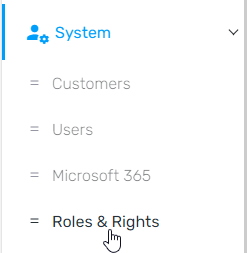
- Go to System > Roles & Rights on the left hand side.
- Click on the Create Role button.

- In the Role name field, input a name for the desired role and press Continue.

- In the Portal access tab, you can set what access users have to the Control portal. If you leave this blank, they will only have access to assigned phone systems.

- In the PBX access tab, you can select what phone systems users can see by checking the Allow box.

- Click the Edit button to the right of the phone systems you allowed access to. From here you can restrict the role's rights to that instance. Please note that the example below is only an example. These rights should be personalized based on what a user assigned to the role needs to access

8. In the top left click Save.
