1. Navigate to the 1Stream Portal.
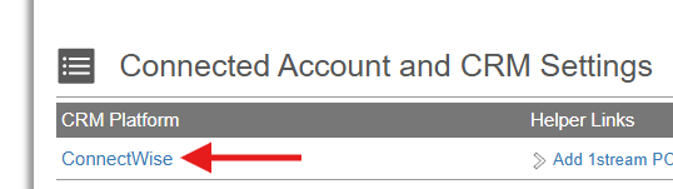
2. From the “Connected Account and CRM Settings” menu, select “ConnectWise”.
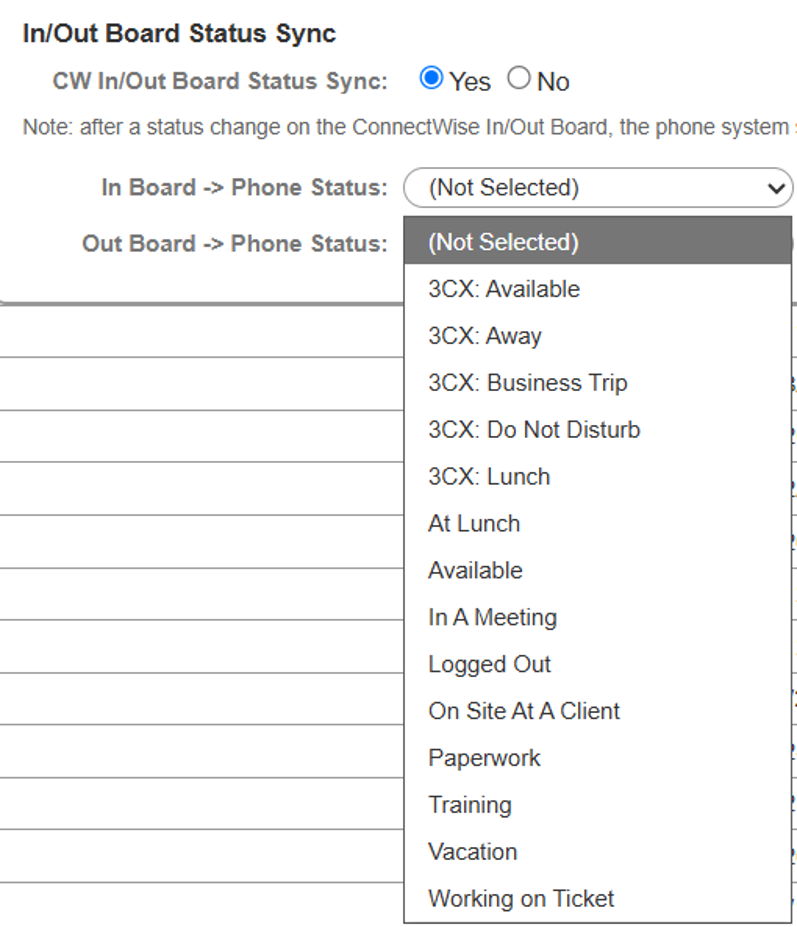
3. Scroll to the bottom of the pop-up and locate the “In/Out Board Status Sync” Set the status to “Yes”.

4. Set phone system statuses for both the “In” board status and the “Out” board status:
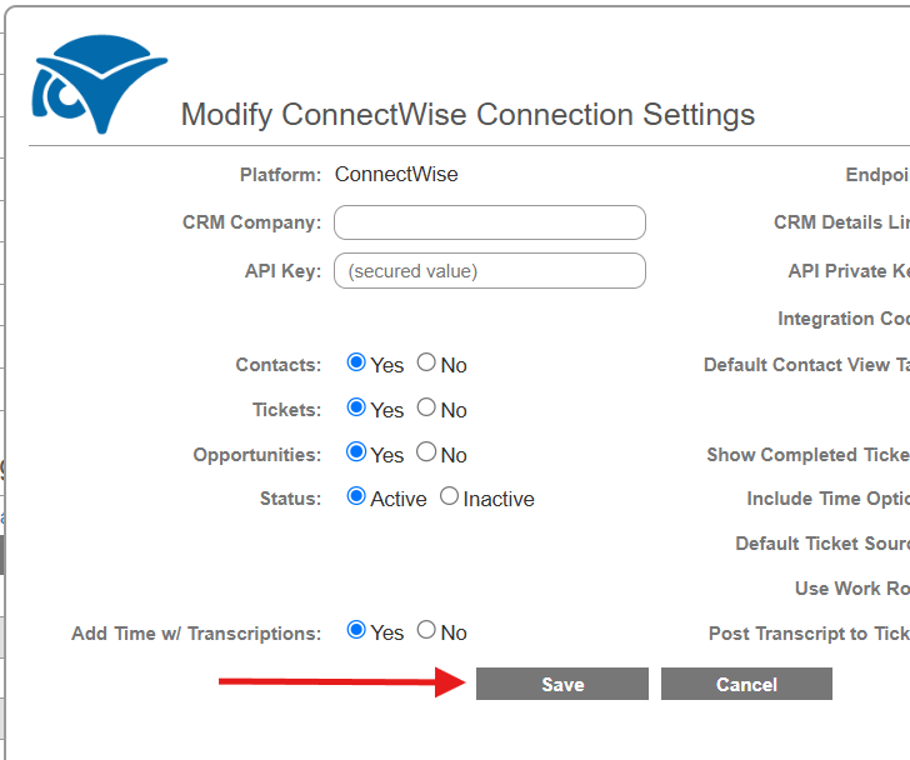
5. Scroll back up to the top of the pop-up, then select “Save”.
6. Sync is now configured. Note that after a status change on the ConnectWise In/Out Board, the phone system status may take up to 5 minutes to update.