1stream Engage Required
1Stream Engage Required
This feature is available for only 1Stream Engage licensed users and higher plans. If you don't have this and would like this feature to be available, please reach out to your Sales Representative to upgrade user licensing.
Setting up the Voicemail Monitoring Signal
The Voicemail Monitoring Signal is intended to be the answer to on-call or after-hours arrangements where even without being logged into 1stream, a user can be notified of when a voicemail is left on a monitored extension.
Pre-Setup Notice
Before setting up this feature, make sure that the users to be notified have the phone field filled out in their 1stream user profile. To do this, click on the username under CRM User Mappings and fill out the phone number field. Be sure not to have special characters in this field such as plus signs or dashes as this can cause problems.
Functionality Conflict Notice
If an extension that is being monitored for voicemails has the voicemail settings arranged to send the voicemail file via email and delete from the mailbox, it will cause a conflict in the functionality of this feature. This feature can only monitor the phone system storage to detect the voicemail file and will not work as intended if the voicemail file is being delivered only via email and deleted from the mailbox.
Setup On Call Schedule
- Log into the 1stream Admin Portal.
- Go to the Administration > Manage Organization menu in the top right.

- Scroll down to the Notifications - On Call Management section.
- Click on the Add / Edit link, then the Signal calendar pop-up will appear.

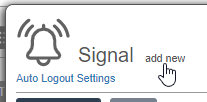
- Click on the Add New link in the top left. The space underneath the text will expand to allow for new options.
- In the Title textbox, plug in name and select Voicemail Monitor, then click the + button.

- In the Description field add a short description if desired, then hit Save.
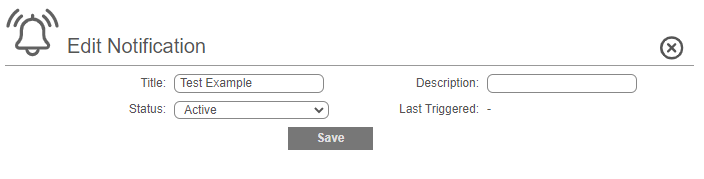
- In the Monitored Extensions section click the green + icon.

- The Add Monitored Extension pop-up will appear. Select the Extension to be monitored and click Save.

- In the Signal Notify Routines section click the green + icon.

- In the Name field, input a desired name for the routine.
- In the Add Participant drop-down, type in the name of the extensions to be included. Participants selected will appear beside the Selected Participants section. Removing the participants can be done by clicking on the red X beside their name.

- In the Schedule/Rotation Type drop-down, select the desired option.

- For the timing, enter it as follows:
- In the Start Date field enter the first date the schedule should run.
- In the End Date field enter the last date you want the schedule to run, but you can select No End Date to have it go on forever.
- In the Start Time field enter the time when you want the monitoring to start.
- In the End Time field enter the time where you want the monitoring to end.

- In the Signal Quiet Hours section, click the green + icon to configure time frames where Signal knows to not send alerts.
- In the Add Signal Quiet Hours pop-up, select the following:
- Quiet Hours Type - Choose between Time of Day or Weekday and Time of Day.
- From Weekday To Weekday (For Weekday and Time of Day option only)
- Start Time
- End Time

- In the Notify Options section, select the ways participants should be notified.
- Click the Save button to save your schedule.
Setup Notification Levels
We use the concept of "Levels" in our Signal voicemail monitor, so you can set multiple cascading notification rules with increasing frequency, number of recipients, and types of notification.
- Scroll down to the Level Settings section and click the green + icon.

- Set Level Interval to how many seconds you want to wait on this level before the next retry or level.
- The minimum value of this is 60 seconds, any lower than that and it will run every minute.
- Set Level Retries to the number of retries on this level, before proceeding to the next.
- Set Notification Types to the types of notifications you want to use.
- Voice Call: a call will be issued to the phone number listed on the 1stream user's profile.
- SMS: a text message will be issued to the phone number listed on the 1stream user's profile.
- Email: an email message will be issued to the email address listed on the 1stream user's profile.
- Under Notified Users, click the green + icon and add all the users this notification level will apply to.
- Review your level and if it all looks correct, click Save.
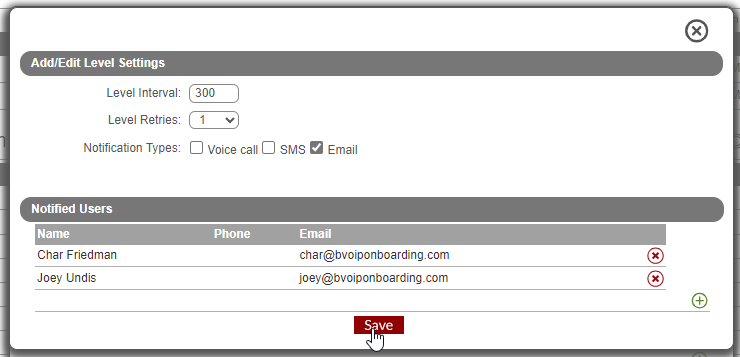
- Add any additional levels as necessary to suit your needs.
- Once complete, review your monitor and click Save.
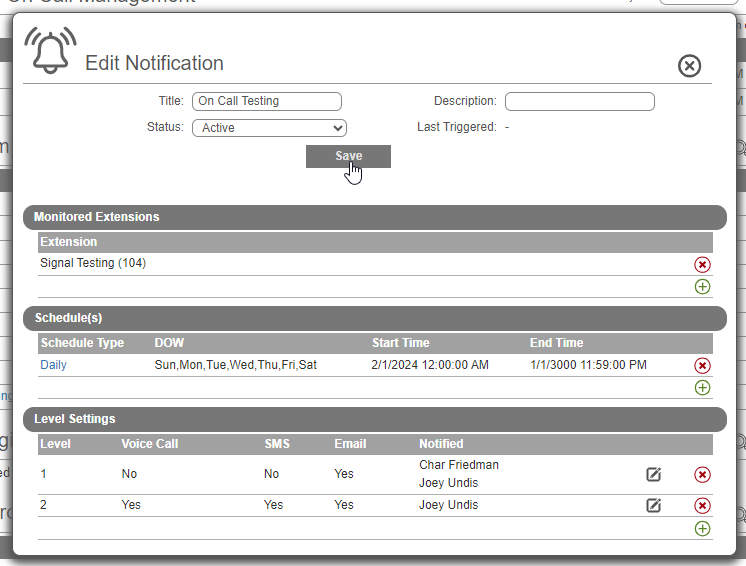
The notifications will go out to the specified 1stream user(s) via the selected method(s) each time that a voicemail is received for the set monitored extensions.
Functionality Conflict Notice
If an extension that is being monitored for voicemails has the voicemail settings arranged to send the voicemail file via email and delete from the mailbox, it will cause a conflict in the functionality of this feature. This feature can only monitor the phone system storage to detect the voicemail file and will not work as intended if the voicemail file is being delivered only via email and deleted from the mailbox.