1Stream Intelligence Required
1Stream Intelligence Required
This feature is available for only 1Stream Intelligence licensed users and higher plans. If you don't have this and would like this feature to be available, please reach out to your Sales Representative to upgrade user licensing.
API Credits Consumption Required
This process will cause consumption-based charges to start in your SpaceXAI Platform account. Once enabled, calls from the past 5 days will be transcribed. You may see higher usage on the first day after enabling due to this. Consult your bill after a day or two to determine if your settings need to be adjusted, or if this is not a right fit for you.

Requirements
You must have the following in order to proceed:
- At least one 1Stream Intelligence user license
- A SpaceXAI Console account
- Call recording enabled for whichever calls you want transcribed and analyzed
Create the API Key for Grok
- Login to the SpaceXAI Console
- In the top left click your current Team and then Create team

- Give it a name like 1Stream and then click Create

- Navigate to API Keys on the left side menu and then click Create API Key

- Give the API Key a name like 1Stream Call Transcriptions, configure any advanced settings you prefer, then click Create API Key

- Copy the API Key and save / document in a secure place. You'll use this API Key in the next section.

Setup the 1Stream Integration
Now that we have our SpaceXAI Console account and API Key created, we can setup the 1Stream side.
New 1Stream Integration Portal (Beta)
- In the 1Stream Integration Portal (Beta), navigate to Administration → Manage Organization

- Open the CRM & Integrations section and click + Add

- Select Grok from the list of available integrations and then click Save

- Paste the API Key you created in the previous section, then click Save

Legacy 1Stream Integration Portal
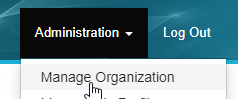
- In the legacy 1Stream Integration Portal, navigate to Administration → Manage Organization
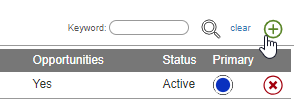
- Scroll down to the Connected Account and CRM Settings section and click the green + sign in the top right
- In the Add New CRM Platform pop up window, select Grok and then click Save

- Paste the API Key you created in the previous section, then click Save

Modifying the Prompt and Model
We give you a basic prompt template which provides consistent transcription results, however to get the best results you'll want to modify the prompt to best fit your company's needs. You have full access to modify the prompt and the model that will be used when sending call recordings to Grok.
To modify the AI Prompt, you'll want to use an external markdown editor such as Visual Studio Code or StackEdit. You can follow general AI prompt engineering guides such as Text generation and prompting - OpenAI API to figure out what exactly to write.
AI Prompt Tips
The following are some quick tips and tricks to modifying the default prompt for Grok to provide results that better suit your needs.
- Language Detection/Translation
- Add the following to the primary responsibilities: * Output all text in French (or other language)
- Remove the Transcript
- Cut the ## Transcription section of Instructions, and the **Transcription** section of Examples
- Update coaching tips and provide more valuable insights
- Add any additional data points to the Focus On section of ## Coaching
- Force voicemail/non-valid calls to 10 Sentiment
- Beneath ## Sentiment Score change the * Do not include.. to * Set score to 10 if…
- Add Context for Company info and spelling
- Beneath # Examples section, create a new section # Context
Line break and type any relevant information you would like to provide as context to the OpenAI model - Example:
# Context
Calls are made to or from the company 1Stream, formerly known as 1Stream, who provides AI Integrated Communications Solutions that are built for IT & Managed Services Providers.
- Beneath # Examples section, create a new section # Context
- Improve speaker role assignment for internal staff
- In the ## Transcription section, add a new line similar to the one below:
* If a speaker introduces themselves as “this is [first name] from CompanyNameHere” or “with CompanyNameHere”, that person will always be labeled as (Agent) for the entire transcript. - replace "CompanyNameHere" with your actual company name. leave “[first name]” as is.
- In the ## Transcription section, add a new line similar to the one below:
We specifically utilize the STT API Endpoint with grok-voice-transcribe-2.0 model by default to generate the transcription.
The transcription output is then sent to the Grok Analysis model of your choosing. By default, the analysis model is grok-4.3.
The following are the current recommended models:
- grok-voice-transcribe-2.0
- AI Model: grok-voice-transcribe-2.0
- This is the default when you configure the integration
- We estimate $0.10 per hour of talk time
- grok-4-3
- Analysis Model: grok-4.3
- This is the default when you configure the integration
- We estimate $0.01 - $0.05 to analyze a call transcript depending on the length of the call
Our cost estimates are just that, estimates, so we implore you to monitor your billing for the first few days after implementation to ensure it's within your expectations.
Next Steps
Follow our guide below on setting up 1Stream to send specific call recordings to OpenAI.