v20
1stream View Required
1Stream View Required
This feature is available for only 1Stream View licensed users and higher plans. If you don't have this and would like this feature to be available, please reach out to your Sales Representative to upgrade user licensing.
FAQ
How do I Notify Clients about Call Recording?
While extensions, call queues and ring groups do have call recording features, many places require you to include an audio notice to your callers that they are being recorded. Only the call queue allows for an opt-in and opt-out feature with caller-based opt-in/opt-out.
Customers with the View plan and above can leverage the Beep Recorder to automate the process of communicating this, especially for outbound phone calls.
What is recorded?
Recording is controlled primarily at the Extension level. When recording is turned on for an extension, any calls that extension is party to will be recorded, even if the other party is internal and has recording off.
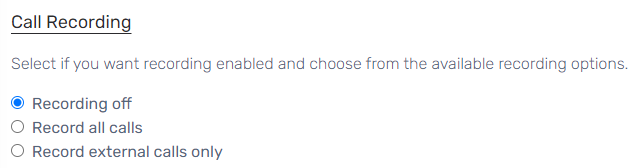
You can optional choose Record external calls only which will omit any internal calls
What's recorded for a transferred call?
Agent 1 has recording enabled, Agent 2 does not.
- Agent 1 receives a phone call and converses with the caller, this is recorded
-
Agent 1 transfers the call to Agent 2
- If this is an Attended transfer, the conversation between them is recorded
- Agent 2 receives the initial caller and converses, this is not recorded
Enable Recording Automatically
- Go to Extensions > Extensions
- Select the Edit button on an existing extension
- Go to the Options tab.
- Go to the Call recording section.
- Select the desired action.
- Click the Save button.
Enable/Disable Recording Manually
Agents have the ability to control the state of recording on their calls by turning it on or off in the softphone.

If you want to block this feature, you'll need Stop-Start Call Recording, which is separately licensed.
Enabling the Opt-in/Opt-out Feature in Call Queues
- Go to Call Flow > Call Queues in the phone system
- Select the edit button to on the desired Call Queue.
- Go to the Advanced tab
- For Recording, pick the preferred option to let callers Opt-in or Opt-out of being Recorded.

- Click the Save button.